

Add to Cart or Request a Quote? A Guide for Magento 2 Stores
Two customers land on the same product page. One needs ten replacement parts and is ready to pay the listed price. The other wants 250 units delivered to two sites and needs a proposal for purchasing to approve. The first buyer needs a direct route to checkout. The second needs a way to send quantities and delivery details to your sales team.

Use Add to Cart for straightforward orders
Keep Add to Cart as the primary action when customers know what they’re buying, what it costs, and how it will ship. This is especially useful for repeat purchases such as spare parts, consumables, and standard packs.
If your published tier prices already cover common bulk quantities and checkout can handle delivery, those larger orders can also go through the cart. A buyer ordering 100 items may have everything they need to check out, while a buyer ordering 20 items with a custom finish may still need a quote.
Show both options when the same product serves different buyers
A packaging supplier might sell boxes by the case at a fixed price. A buyer ordering three cases can check out immediately. A customer sourcing a pallet for multiple warehouses may need a written price and a delivery schedule before placing the order.
Put the quote option near Add to Cart, and give buyers a short reason to use it. For example: “Ordering by the pallet or shipping to multiple sites? Request a quote.” If your quote workflow uses a quote cart, the Add to Quote button adds the selected product and options so the customer can build a request with multiple items. See how the Add to Quote button works on Magento 2 product pages.
Use Request a Quote when sales needs to confirm the terms
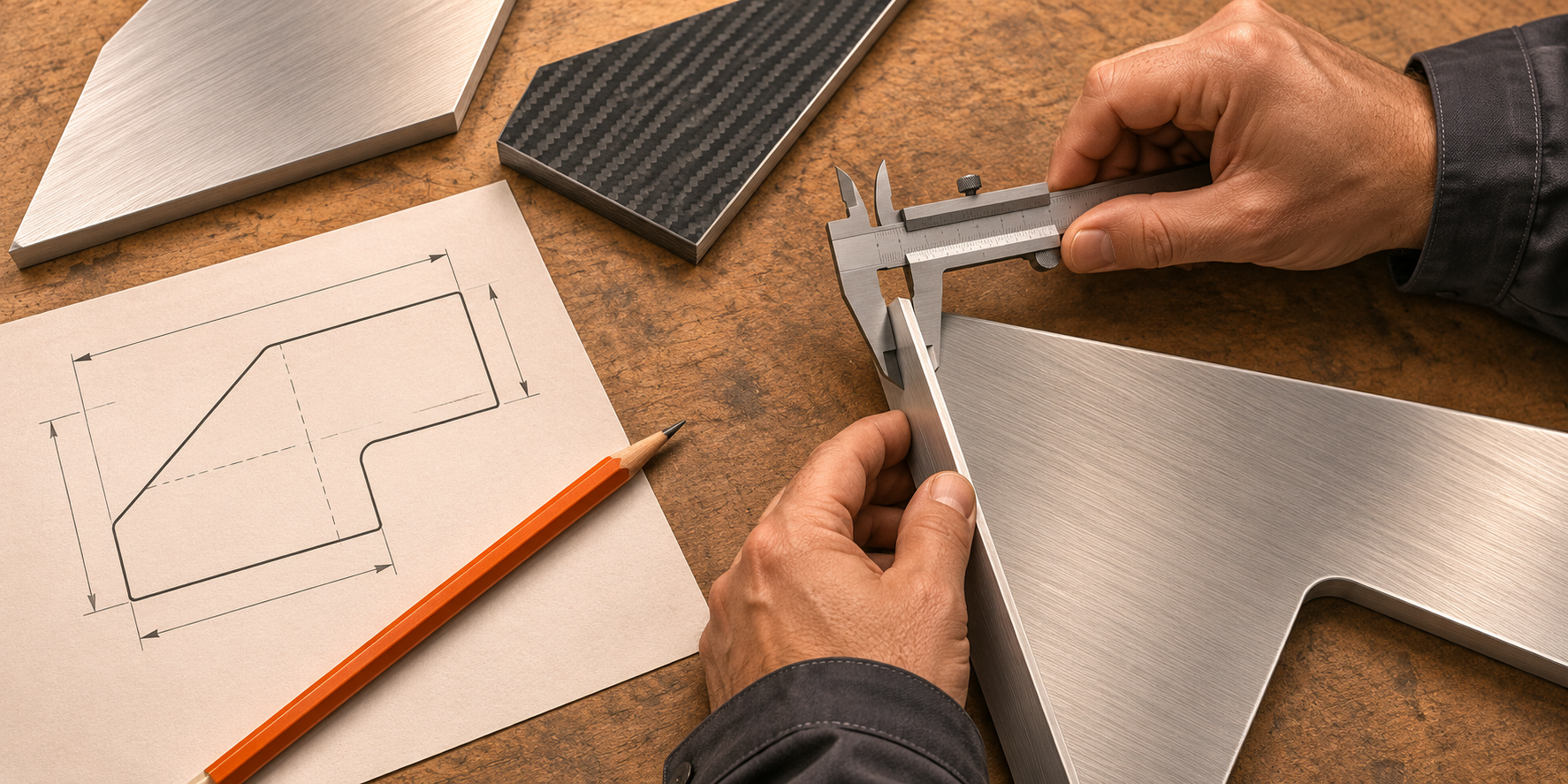
Use a quote as the primary action when the final price depends on information you don’t yet have. For custom-cut materials, for example, sales may need the dimensions, material, quantity, and delivery postcode before it can price the order. Say what buyers should provide so the sales team can prepare a proposal with fewer follow-up questions.
If your store needs to hide prices or disable direct ordering for selected products or customer groups, Not2Order controls those settings. Cart2Quote for Magento 2 handles the quote request and proposal workflow. It also lets you control who sees the quote button, including selected customer groups.
Test the path from product page to submitted request
Pick one fixed-price product, one product with a bulk-order option, and one that requires a quote. Test them on mobile and desktop. If your store uses customer groups, test as a guest and as a signed-in buyer in the relevant groups.
Check that the correct buttons appear, that selected options and quantities carry through, and that buyers can tell whether they’ve added an item to a quote or submitted the full request. Then open the request in the Magento admin and confirm that sales has the details it needs to respond.

What Happens After a Customer Requests a Quote?
A quote request gives your sales team the details it needs to prepare a proposal. Review the requested quantities, product options, and delivery requirements before confirming the price and terms. If anything is unclear, ask the buyer to confirm it before you send the proposal.
When you send the quote, include the exact expiry date and explain how the buyer can accept it or request a change. Schedule a reminder early enough for them to get internal approval or ask for more time. For help setting deadlines and writing reminders, read B2B Quote Follow-Up in Magento 2, which includes two ready-to-use email templates.
See how customers submit requests from your storefront and how your sales team turns them into proposals in the Magento admin. Explore Cart2Quote for Magento 2.
Customer Quotations Extension for Magento, easy, complete and skyrocketing your sales.
